 TakeNote
1Install TakeNote
TakeNote is coming soon to the Chrome Web Store. Once it's there, open its page and choose Add to Chrome. Then pin it so it's one click away: click the puzzle-piece icon at the top right of Chrome, and the pin beside TakeNote.
2Create your account
Click the TakeNote icon in your toolbar. The first screen has two ways in.
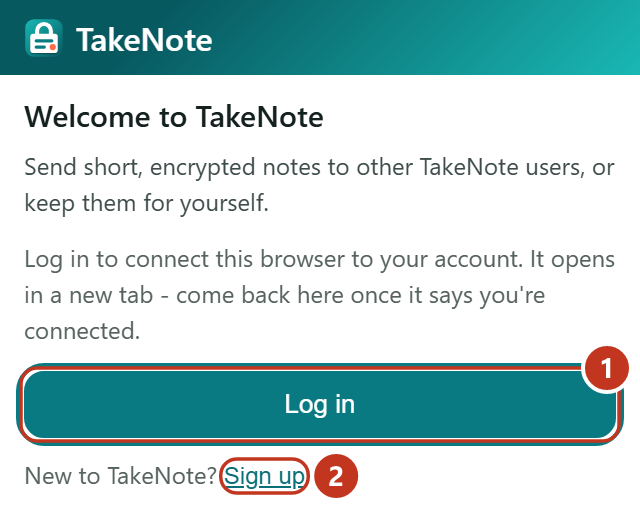
- Log in opens the TakeNote website in a new tab to sign in and connect this browser. The popup closes while you do; open it again when the page says you're connected.
- Sign up if you're new. Use your email and a password, then confirm your email from the message we send. Come back and press Log in.
After you log in the first time, the page asks you to choose a username. It's the name people type to send you a note.
3Set up your keys
Open TakeNote again. Setup happens once on each browser and takes about a minute. It creates the keys that seal and open your notes, stored on your device and locked with a passphrase only you know.
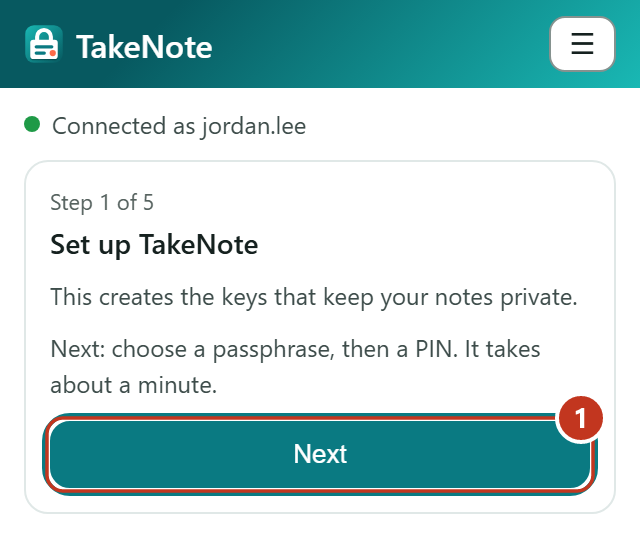
- Press Next to begin.
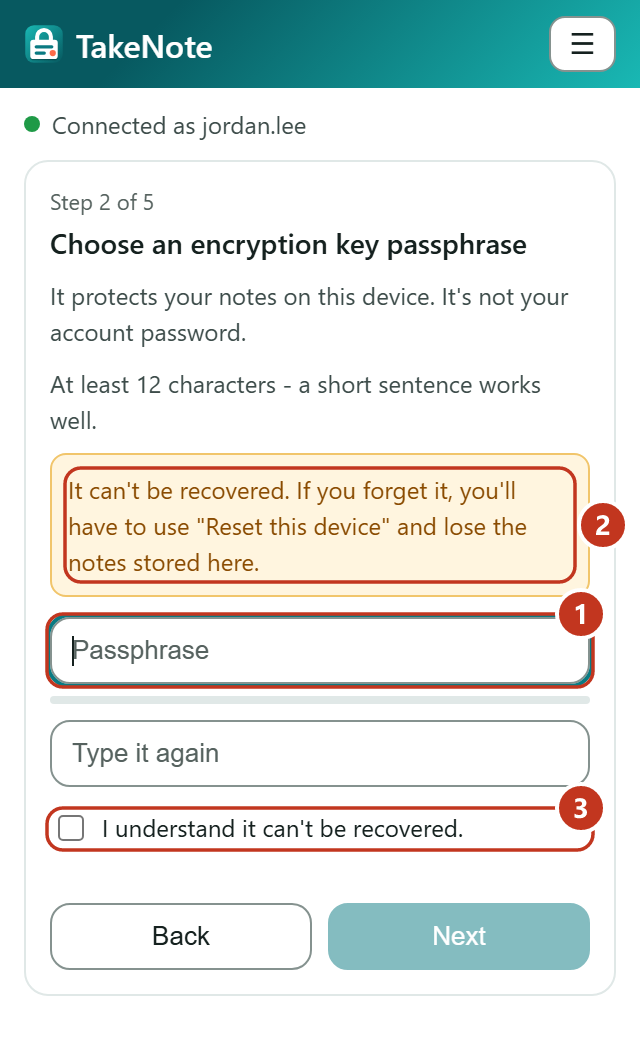
- Choose a passphrase: at least 12 characters. A short sentence you'll remember works well. It's not your account password.
- It can't be recovered. If you forget it, you'll have to reset TakeNote on this browser, and the notes stored here are lost. Write it down somewhere safe.
- Tick to confirm you understand, then press Next.
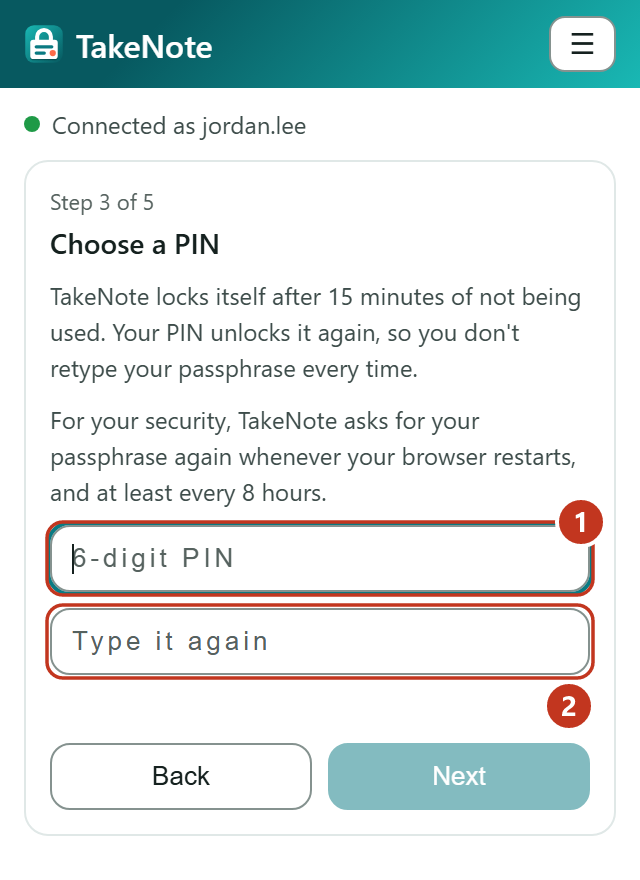
- Choose a six-digit PIN. TakeNote locks itself after 15 minutes without use, and your PIN unlocks it again.
- Type it again, then press Next. TakeNote makes your keys, and you're ready.
4Send a note
Open TakeNote and choose the Add Note tab.
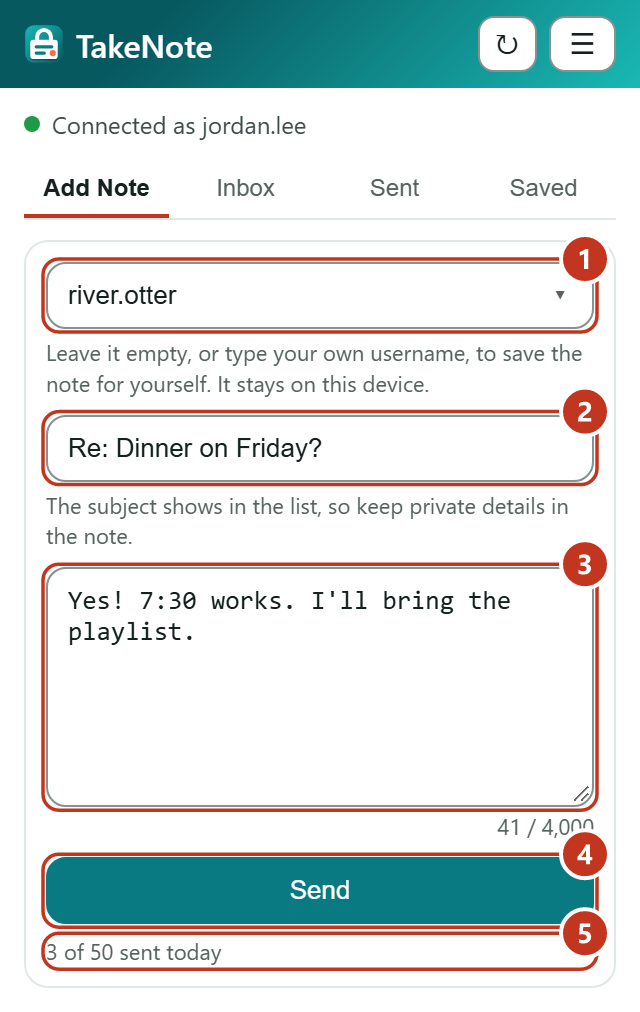
- To: type the person's username. Names you've sent to before appear as you type. Leave it empty to save the note just for yourself.
- Subject is optional. It shows in the list, so keep private details in the note itself.
- Your message, up to 4,000 characters.
- Send seals the note on your device and sends it. Only the person you chose can open it.
- How many notes you've sent today, out of your daily limit.
5Read your notes
New notes arrive in your Inbox, and the toolbar icon shows how many you haven't read.
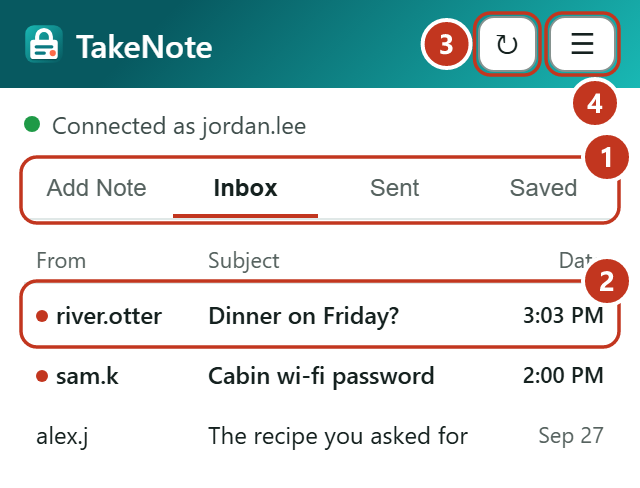
- The tabs: Add Note to write, Inbox for notes you receive, Sent and Saved for your own copies.
- A dot means you haven't opened that note yet. Click a note to read it.
- Refresh checks for new notes now. TakeNote also checks on its own.
- The menu, for About, Contact Us, Settings and Sign Out.
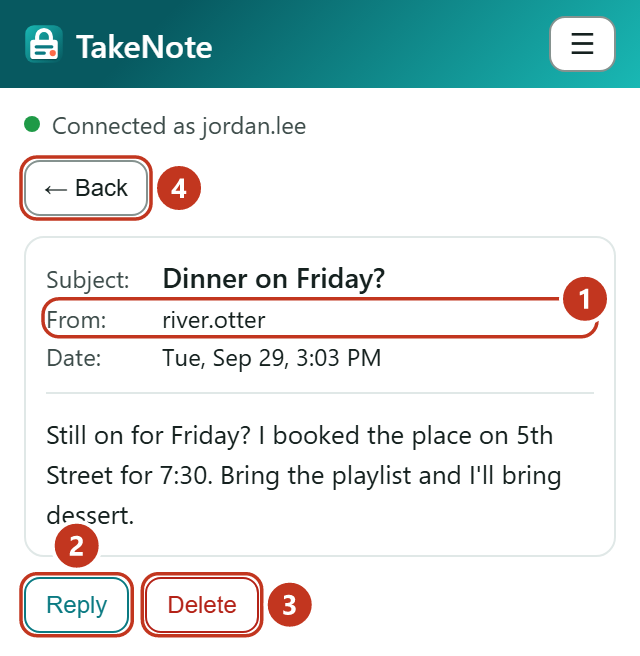
- From is checked against the sender's signature, so the name shown is who really sent it.
- Reply opens Add Note with their name and the subject filled in.
- Delete removes the note from this browser.
- Back returns to the list.
6Sent and Saved
Sent keeps a copy of each note you send, and Saved holds notes you wrote for yourself. Both stay on this browser and are deleted after seven days.
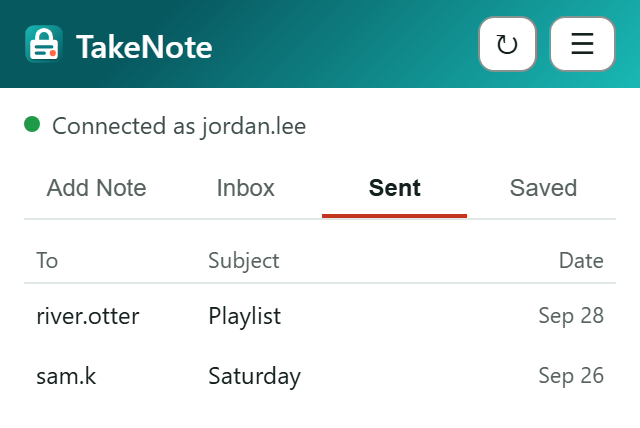
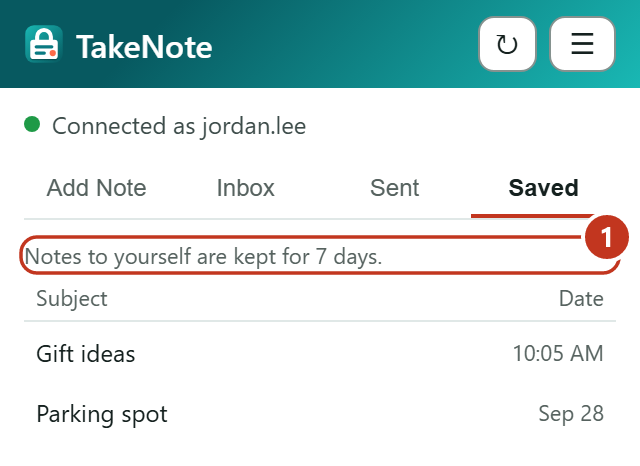
- Notes to yourself never leave this browser, and go after seven days.
7Locking and your PIN
After 15 minutes without use, TakeNote locks. When your browser restarts, and at least every 8 hours, it asks for your passphrase as well as your PIN.
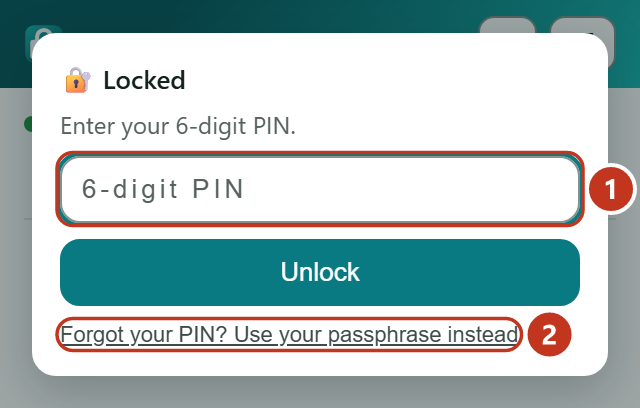
- Enter your PIN and press Unlock to carry on.
- Forgot your PIN? Use your passphrase instead.
8The menu and Settings
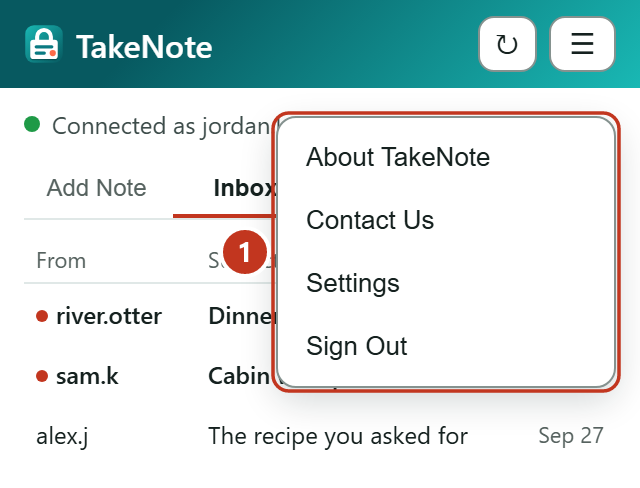
- About TakeNote explains what TakeNote protects. Contact Us has our support address. Settings is where you turn the arrival sound on or off, change your passphrase or PIN, and delete your account. Sign Out disconnects this browser.
9If something goes wrong
- I forgot my passphrase.
- Nobody can recover it, including us: that's what keeps your notes private. On the lock screen, choose Forgot your passphrase? Reset this device. You keep your account and username, but the notes stored on this browser are lost.
- Someone says they sent me a note, but it isn't here.
- Open TakeNote to collect it; the Refresh button checks at once. A note waits on the server for up to seven days, and is deleted if nobody collects it by then.
- I've got a new computer or browser.
- Your account works in one browser at a time. Log in on the new one and TakeNote offers to move it there. Notes on the old browser, and any on their way to it, are lost in the move.
- Something else?
- Email [email protected].